




 When it comes to formatting Microsoft Word documents, we still see so many inefficiencies and inconsistencies, not to mention documents that are not user friendly and not easy to navigate. But there is a way to change this.
Using Styles in Microsoft Word can remedy the situation (or at least a step in the right direction), not only making formatting easy and efficient, but also enabling easy creation and maintenance of table of contents. If you use Styles, you can create a compelling table of contents (with all the bells and whistles) instantly and as your document continues to evolve, update it at once.
Are you ready?
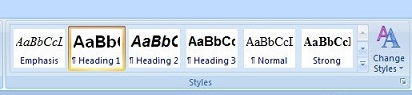
First: Instead of directly formatting your headings (the headings of the main sections of your document), use the Heading 1, Heading 2, and Heading 3 Styles to do so. These are paragraph styles. This means you don't need to select the whole text of your heading in order to format it. All you have to do is click anywhere in the text, and click on the desired heading on the ribbon, and the formatting gets applied.
In Microsoft Word 2007, this is what the ribbon looks like with the Styles easily available:
Second: When you are ready to produce your table of content, select the References tab, and then click on Table of Contents:
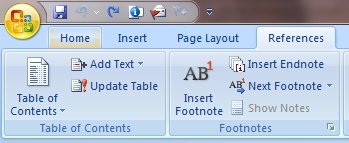
Third: Select one of the formats from the popup menu that gets displayed when you click on Table of Contents, and magically, the table of contents appears. Not only it appears, by default it displays the page numbers, hyperlinks to each section, and looks pretty! Of course you can change all these options as desired.

Stay tuned for more Microsoft Word 2007 tips this week in the complimentary lunch and learn webinar Microsoft Word 2007 Tips by Kim Silverman.