





There are many ways to share Microsoft Project data with users who don't have access to Microsoft Project. I would like to point out two approaches, one that consists of exporting Microsoft Project data to Excel, and another that consists of taking snapshots of Microsoft Projects views and making them available as pictures.
Approach #1: Exporting to Excel
First: From the File menu, select Save As, and then provide a file name, and select the file type "Microsoft Excel Workbook", and click Save.
Second: The Export Wizard opens up, which will guide you through defining a "map" for the export, in which you specific what data you would like to include.
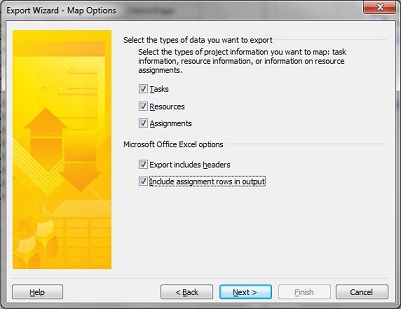
Third: Once you define the mapping and click Finish, the resulting Excel workbook is generated.
This process of defining a map involves specifying the fields that you want to export from Microsoft Project and the corresponding column headings in Excel. This can be a tedious process the first time you do it. However, the good news is that you can save the map, and then reuse it when you perform this process again in the future.
Approach #2: Saving reports as pictures
Microsoft Project 2007 makes this easy by offering the "Copy Picture" option in the Reports menu. The following settings are available:
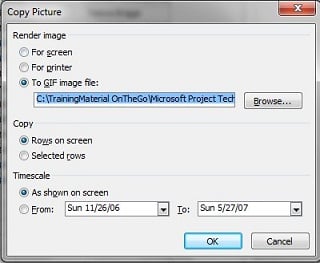
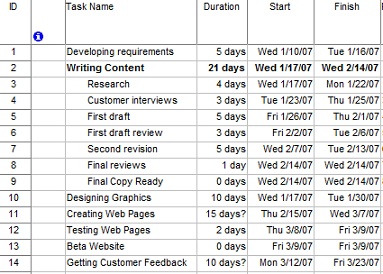
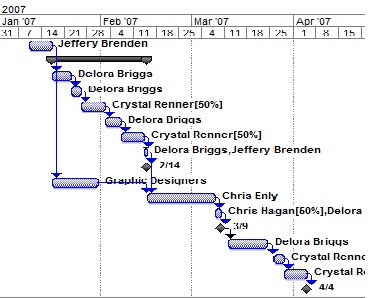
For instance, here is a snapshot of a Gantt Chart that was generated using the "Copy Picture" approach, and using the "To GIF image file" option (split into 2 for better readability):
Additional Resources
- The Microsoft Project Techniques workshop (coming up June 21, 2010)
- The Microsoft Project self-paced class available now!