



 Cindy asked "I am trying to categorize and file the messages in my mailbox. What do I do about the Sent Items folder? I get a ton of emails and send out a lot; It would take a lot of time to organize these messages. Or should I wait and do them in batches?" This is actually one of the common questions that we get at the workshops and I would like to tackle it from two different angles.
First: Remember the 80/20 rule
80% of our results come from 20% of our effort. This rule applies to e-mail just as well. It is likely that 80% of our "e-mail" results come from 20% of our emails. Therefore, it is important for us to give these 20% careful attention and organize them properly. The rest of the e-mail messages should be processed as quickly as possible if at all.
When it comes to the Sent Items folder (which is by the way the Microsoft Outlook terminology; so for those using other e-mail applications, please extrapolate; Google users, please check out the Google related resource below), I would recommend organizing the top 20% and letting the rest stay in the Sent Items and then get archived periodically.
Second: Organize the top 20%
When it comes to the top 20%, after you compose your message and just before you send it, click on the Options tab:
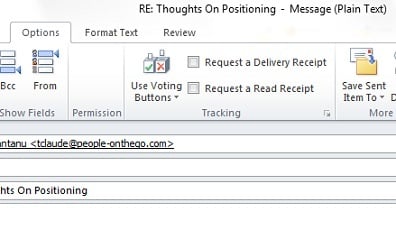
Then notice the Save Sent Item To button, and click on it, and then select the Other Folder menu option from the popup menu. The following window opens:
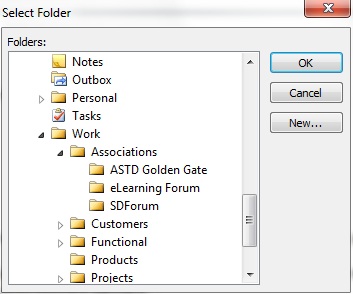
This allows you to decide which folder you want to save the sent item in. Please note that the exact steps and screens may be slightly different in your version of Microsoft Outlook (the above screens are taken from Microsoft Outlook 2010).
While this process takes a few extra steps, users tell us that they find it easy and convenient (more so than doing the organization later) because the information is still fresh in their mind, and if they do it now, they have one less thing to think about and do later.
Additional Resources
- Managing and Organizing Your E-mail Inbox Using Outlook
- Managing and Organizing Your E-mail Inbox Using Google Apps
- Total Organization: E-mail, Electronic Documents, and Papers
- The Accomplishing More With Less Workshop and Webinars
- The Accomplishing More With Less Workbook