



If you are been using Microsoft Word Styles (if you haven't, it is highly recommended that you do--see note below), and you want to get your Heading 1, Heading 2, Heading 3, and the rest of the headings to automatically assign numbers as shown below, you may have already found out that this is not something that you can do by editing the Headings Styles.
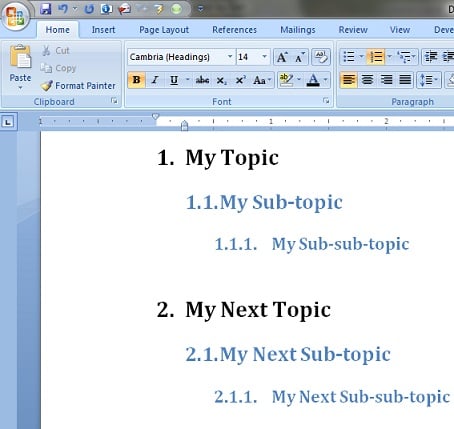
1. My Topic
1.1. My Sub-topic
1.1.1. My Sub-sub-topic
2. My Next Topic
2.1. My Next Sub-topic
2.1.1. My Next Sub-sub-topic
etc.
So how do you get the headings to show the multilevel list
The answer is actually easier than what you might think.
- From the Home tab, click the Multilevel List button (next to the Bullets and Numbering buttons)
- From the menu, select Define new Multilevel list, and the new window opens up
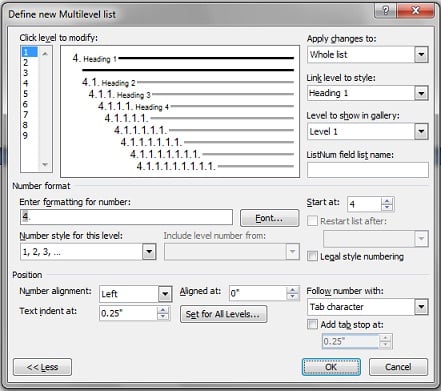
This is where it all happens:
- Select each level starting with level 1 (in the top left list)
- For each level, select the appropriate heading in the "link level to style" dropdown list that is towards the top right
- Do this for each of the top 3 levels (associating level 1 with Heading 1, level 2 with Heading 2, level 3 with Heading 3) and keep doing it for move levels if you think you will need it.
- Click Ok, and and voilà!
Now you will be able to assign Heading 1, Heading 2, etc. to your text, and they will be automatically numbers as shown here:
If you haven't been using Microsoft Word Styles to format your documents, this means not only you are spending too much time formatting and editing, but that you are not taking advantage of many of the features that the Styles would enable you to do.